Axon FAQ Guide
1. How to Log In to Axon
- Go to adityatrading.in website.
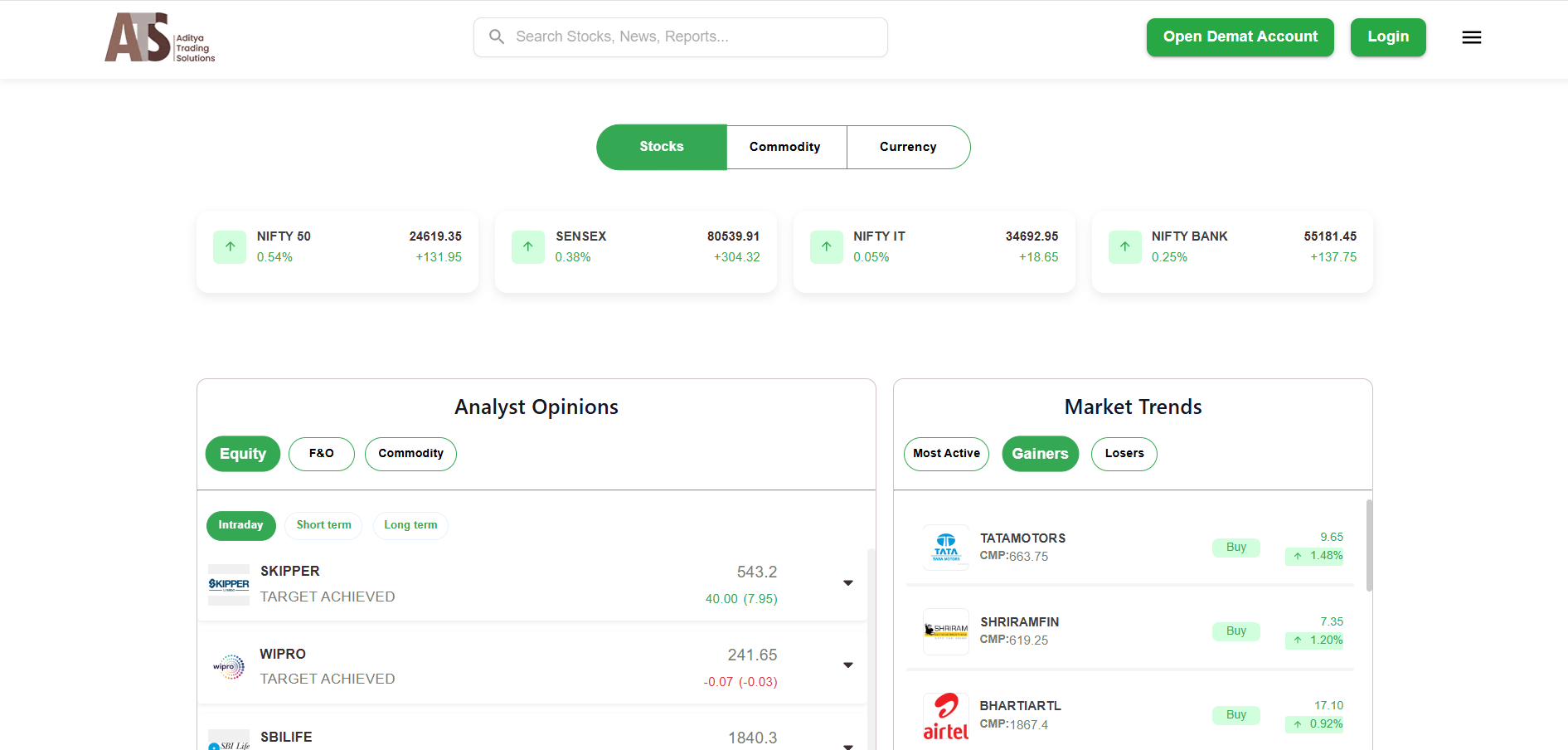
- Click on the three dots in the top-right corner of the screen.
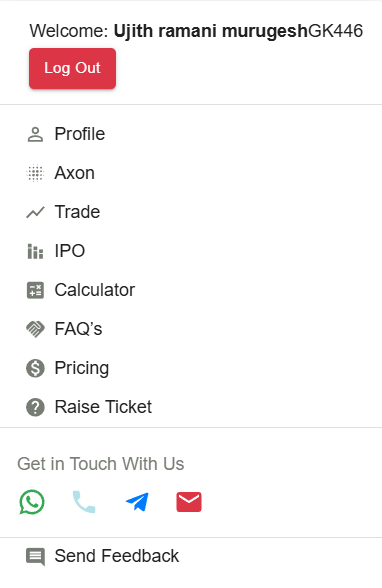
- Select "Axon" from the menu.
- You will be automatically logged in.
2. How to View Portfolio and Holdings
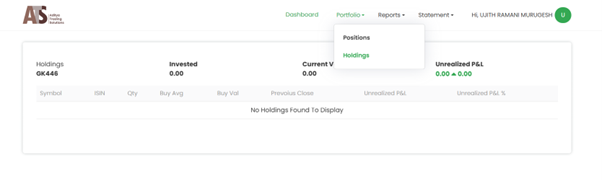
- Go to the Portfolio section to see your current positions.
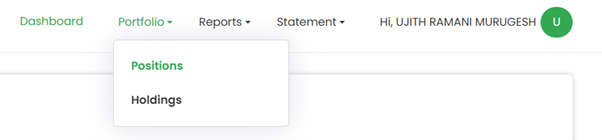
- Click on "Holdings" to view your current holdings.
3. How to View and Download Trade Book
- Navigate to Reports > Tradebook.
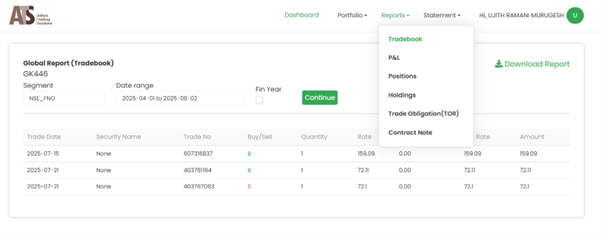
- You will see all your executed trades.
- Use the segment selector and date range filter to narrow down results.
- Click Download to save the report in Excel format.
4. How to Download P&L Report
- Go to Reports > P&L.
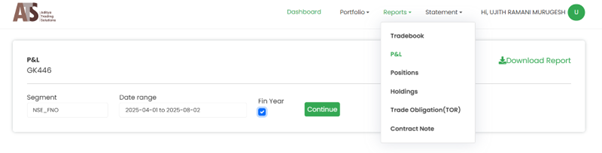
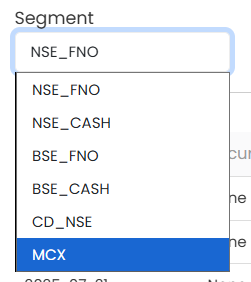
- Select the relevant segment and date range.

- Click Download to get your Profit & Loss report.
5. How to Download Trade Obligation Report
- Navigate to Reports > Trade Obligation.
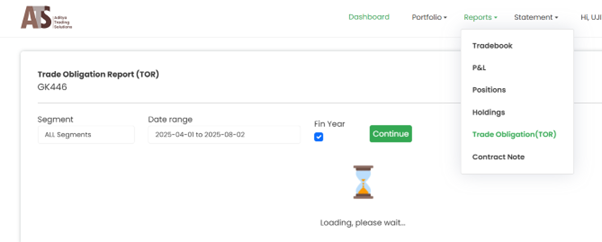
- Choose the segment and date range.
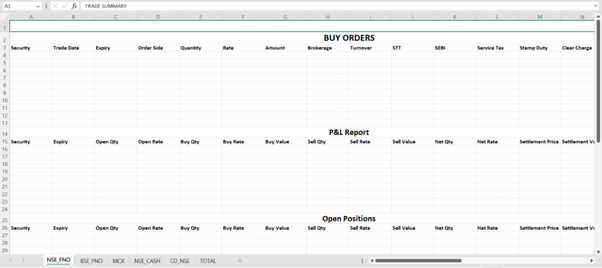
- An Excel file containing your trade obligation details will be downloaded.
6. How to Download Contract Note
- Go to Reports > Contract Note.
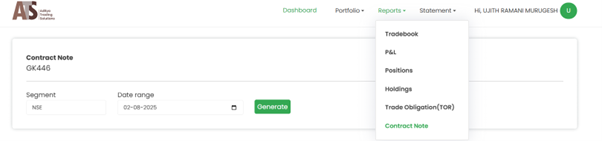
- Select the date range.
7. How to Check Ledger and Summary Report
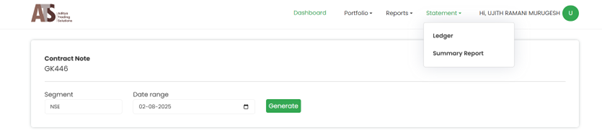
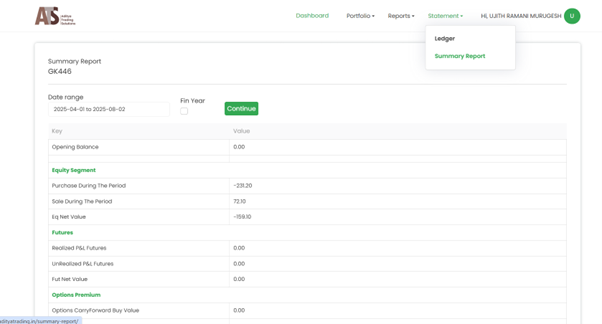
- Click on Statement to access your ledger
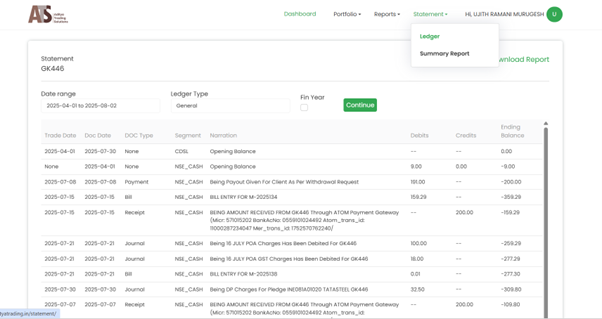
- Click on Statement to access your ledger to access summary report